



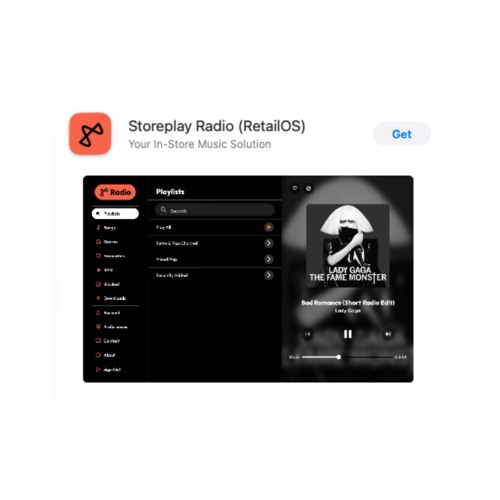
Setting up Storeplay Radio for RetailOS
The Storeplay Radio app is a powerful tool for store teams to manage and control in-store music directly from an iPhone or iPad. It acts as a remote control for your dedicated Storeplayer hardware and a backup player to ensure you're never offline. Music is downloaded to Storeplayer devices to ensure stores have music in the event of the internet going down at any time.
Getting Started
Before you begin, your Admin must have already created a user account for you in the Storeplay RetailOS Admin Portal. Note: For Admins, your login credentials for the Storeplay Radio app are the same as for your RetailOS Admin Portal.
Download The App
In the App Store of Google Play on your phone or tablet, search "Storeplay Radio (RetailOS)" or scan the QR code below specific to your device.
App Store (iOS)
Google Play (Android)

Log In
-
Open the Storeplay Radio app.
-
Enter the username (usually your email address) and password provided to you by your Admin.
-
Tap "Sign in."
.png?width=300&height=300&name=Google%20Play%20(2).png)
- You will be asked to select your store location from a drop down bo. Select your store, and your music will begin to play.
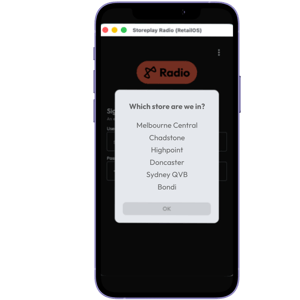
- CRITICAL: The app will ask you if you would like to turn on location services. Ensure you select YES.
.png?width=200&height=200&name=Storeplay%20Product%20Images%20(11).png)
Core Features & How To Use Them
Music Control Once logged in and connected to your store's player, you will see the main player interface:
-1.png?width=300&height=300&name=Google%20Play%20(2)-1.png)
.png?width=300&height=300&name=Google%20Play%20(3).png)
.png?width=300&height=300&name=Google%20Play%20(4).png)
Play/Pause (Not available in schedule mode): Tap the play (▶) or pause (❚❚) icon to start or stop the music.
Skip Song (Not available in schedule mode): Tap the skip (▶▶|) icon to advance to the next song in the approved playlist.
View Playlist: The interface will display the current song and artist
Connect to Sound System: Connect the iPhone or iPad directly to your store's sound system using an appropriate cable (e.g., Lightning to 3.5mm audio jack or via Bluetooth). Ensure Internet: Make sure the device has a stable internet connection (Wi-Fi or cellular).
Press Play: Open the app, log in if needed, and press the play button. The curated music stream will begin playing through your speakers.
Troubleshooting
"I can't log in"
Double-check you're using the correct email and password. Credentials are case-sensitive. If you've forgotten your password, contact your manager to have it reset through the Storeplay RetailOS Admin Portal.
"The music won't play."
-
Connection: Ensure your device is connected to the internet. Try loading a webpage to confirm.
-
Audio Output: Verify that the Storeplayer device volume is turned up and is correctly connected to your store's sound system. Check the sound system is on and set to the correct input.
-
Restart: Close the app completely and reopen it. If that doesn't work, restart your iPhone or iPad.
"The app is frozen or unresponsive."
Force-close the app and then relaunch it. If the issue persists, try restarting your Storeplayer device.
Note: For Android devices, to actually force quit the app, hold the app, press info, then force stop.
Contacting Support
If the troubleshooting steps above do not resolve your issue, please contact the Storeplay support team for assistance.


